

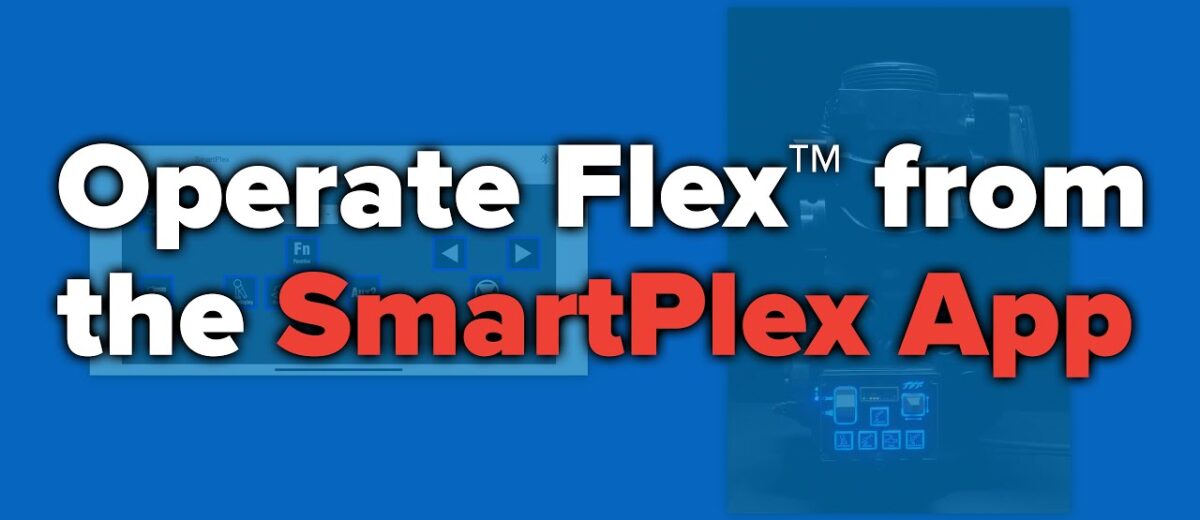
How to Operate Flex® from the SmartPlex App
The TFT SmartPlex App allows full remote control of your Flex Monitor directly from your mobile device. By replicating the functionality of a panel-mounted or wireless controller, it gives operators the flexibility to adjust monitor direction, stream settings, and auxiliary devices on the fly.
Step-by-Step Instructions
- Open the Monitor Hub
- Launch the SmartPlex App on your connected mobile device.
- From the app’s home screen, navigate to the Monitor Hub.
- Enter Operate Monitor Mode
- Tap Operate Monitor.
- An on-screen controller will appear, visually mimicking the physical controller (wireless or panel mount).
- Use Monitor Controls
- Directional Movement:
- Use on-screen arrows to move the monitor up, down, left, or right.
- Nozzle Control:
- Adjust the nozzle between straight stream and fog.
- Stow & Deploy:
- Tap Stow to park the monitor.
- Tap Deploy to move it to its pre-set deploy position.
- Oscillate:
- Enable or disable oscillation.
- Auxiliary Controls:
- Control add-ons such as lights, cameras, valves, or extendable guns, depending on what’s connected.
- Directional Movement:
- Exit Operate Mode
- Tap the serial number shown at the top of the Operate Monitor screen to exit the control mode.